
We may earn a commission when you buy through links on this page. It doesn’t change what we recommend.
Our picks at a glance
- 4K Top Choice – LG 27UK650-W 27” Inch Check price 4K Top Choice – LG 27UK650-W 27” Inch
- 1080p Top Choice – Dell P2219H monitor Check price 1080p Top Choice – Dell P2219H monitor
- Best Budget – Acer SB243Y G0bi 23.8-inch Check price Best Budget – Acer SB243Y G0bi 23.8-inch
- High End – ASUS ProArt PA278QV 27-inch QHD Check price High End – ASUS ProArt PA278QV 27-inch QHD
- 1080p Basic – ASUS VA24DQ 24-inch Check price 1080p Basic – ASUS VA24DQ 24-inch
Ever since the COVID outbreak, we’ve seen home offices on the rise. This trend persisted even after the virus was done with its fair share of damage. So many people have come up with their own startup too.
Now the center of it all, is a monitor. So, it raises the question, what is the best budget monitor for your home office? And is it worth it?
I have saved you the research work in this article. Here are the reviews of some of the best budget monitors for home office. We dive deep to the insights here. So read on for your perfect home office monitor in a budget.
Is Budget Monitor Worth?
For the office? Depends on the task. Here’s a brief explanation:
The utilization of a monitor is dependent on the work. Cheap monitors perform admirably as general-purpose displays when utilized within their limits. They are not the greatest solution for tasks requiring fine graphic detail and color representation, as well as gaming.
The finest affordable monitors provide a wealth of features and benefits without breaking the bank. They also offer outstanding displays, adequate brightness, realistic colors, VESA-mount compatibility, and more for a low price.
What Size Monitor is Good for Your Home Office?
Essentially, you’re seeking for pixels that don’t fade out when viewed on a wider screen. A wide screen and clear 3D image quality are required to appreciate the 4K details.
However, there are certain advantages and disadvantages to the size. Our goal is to choose the one that has more advantages than disadvantages.
The first step is to determine the appropriate screen size and resolution. Having greater screen area allows you to see and accomplish more, which leads to increased productivity. Most office work, such as emails, internet browsing, and Microsoft Office projects, need a screen size of 24 to 32 inches.
Screen size and resolution are inextricably linked. Users will see more realistic and crisper visuals with more pixels per square inch of display.
For larger monitors, a higher resolution is suggested. For example, 27-inch QHD (2560 x 1440), 32-inch 4K (3840 x 2160), and 34-inch WQHD (3440 x 1440) displays with more than 100 pixels per inch are recommended.
If you need additional screen area, you should consider purchasing multiple monitors.
You can also choose a wide curved monitor with a screen size of 34 to 49 inches. Monitors with ultra-thin bezels are perfect for constructing seamless multi-monitor setups, as bezel breaks are less distracting.
Top 5 Budget Monitors: My Honest Review
Here are my top picks on budget monitors for your cozy and productive home office:
| Product | 4K Top Choice – LG 27UK650-W 27” Inch | 1080p Top Choice – Dell P2219H monitor | Best Budget – Acer SB243Y G0bi 23.8-inch | High End – ASUS ProArt PA278QV 27-inch QHD | 1080p Basic – ASUS VA24DQ 24-inch |
| Color Quality | sRGB 99% Color Gamut | NTSC 72% Color Gamut (100% sRGB) | IPS panel (gamut not listed) | 100% sRGB & 100% Rec. 709, Calman Verified (Delta E < 2) | IPS panel, 178° viewing angles (gamut not listed) |
| Other Notable Technology and Features | DAS Mode, HDR10, 3-Side Virtually Borderless Design, Factory Calibration, AMD FreeSync™, Black Level, On Screen Control, Six Axis Control, Flicker Safe. | TUV3 Certified, flicker-free screen with ComfortView, VESA, USB 3.0. | Zero-frame design, Adaptive-Sync (FreeSync Compatible), 250 nits brightness | ProArt Preset & Palette, flicker-free, blue light filter, anti-glare, height/tilt/swivel/pivot stand, 3-year warranty | Adaptive-Sync/FreeSync, TÜV Rheinland Flicker-free & Low Blue Light, built-in speaker, VESA mount, 3-year warranty |
| Port | HDMI 2.0, HDCP, DisplayPort | HDMI, DisplayPort, USB-upstream port and USB-downstream. | Not listed | DisplayPort, HDMI, DVI-D, Mini DP, USB hub | HDMI, DisplayPort, VGA |
| Refresh Rate | 60 Hz | 60 Hz | Up to 120 Hz | Not listed | Up to 75 Hz |
| Response Time | 5ms (GtG) | 8ms (GtG) | 1ms (VRB) | Not listed | Not listed |
| Price | $379.97 (Nov 2026) | $163.52 (Nov 2026) | $74.99 (Nov 2026) | $215.95 (Nov 2026) | $124.00 (Nov 2026) |
4K Top Choice – LG 27UK650-W 27” Inch
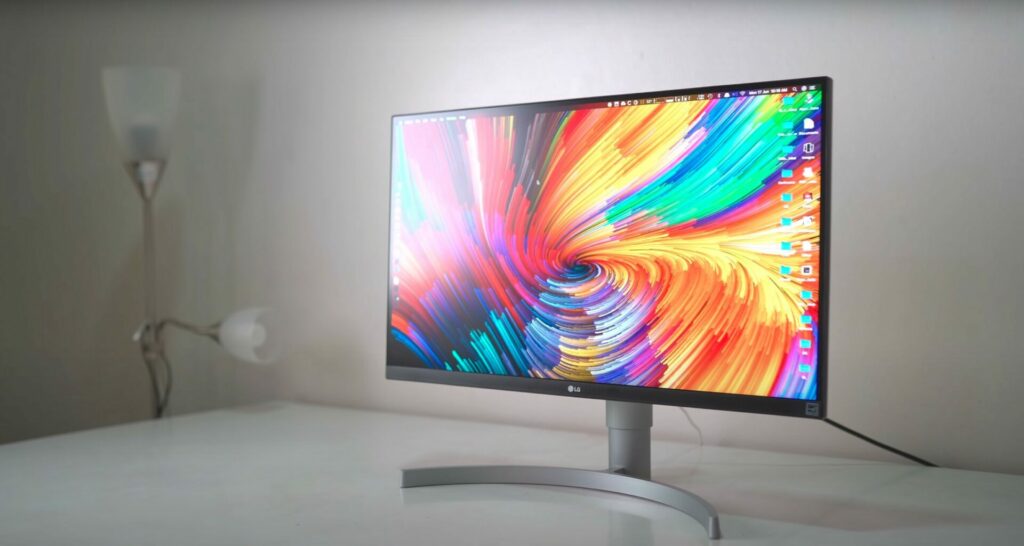
The LG 27UK650-W is a good monitor that has a high resolution and allows you to see fine details. The monitor supports HDR, but it lacks a wide color gamut. However, it will increase the overall productivity of your home office. Its large screen and wide viewing angles will give you more space to work on in your home office.
Read the full write-up
Key Features:
- Aspect Ratio: 16:9
- Pixel Pitch: 0.1554 Mm
- Brightness: 450 Cd/M²
- Color Support: 1.073 billion Colors
- Resolution: 4096 x 2160
This monitor has a high resolution that clearly displays every detail. It has as a wide viewing angle. Besides, the monitor supports AMD FreeSync technology, which is an excellent choice for 4K console or PC gaming.
Contrast and Colour Accuracy
Content creators will appreciate the monitor’s ability to reproduce contrast and brightness for editing and previews. Especially those working with HDR content.
In addition, the monitor covers 99 percent of the sRGB spectrum, making it an excellent choice for graphic designers, photographers, and anyone looking for highly accurate color.
This means that the black tones will be less vivid than on a VA panel display with a static contrast ratio of 3,000:1, but the colors will be more vibrant and lively.
Furthermore, IPS panels have 178-degree viewing angles and a fast response time speed of 5ms (GtG). This is sufficient to eliminate all trailing of fast-moving objects at 60Hz.
4K resolution results in a high pixel-per-inch ratio of 163 PPI on a 27′′ screen of the LG 27UK650 monitor. This allows for a lot of screen real estate and sharp details.
Performance
The LG 27UK650 4K monitor supports HDR, along with an increase in peak brightness from 350 to 450 nits.
Yet, you won’t notice a significant improvement in HDR picture quality because the display lacks a wide color gamut and local dimming. However, this would increase the contrast ratio.
I would recommend a monitor with at least VESA’s HDR600 certification for a good HDR viewing experience. Although these displays are naturally more expensive. These monitors lack VESA’s entry-level HDR400 certification.
Connectivity & Design
The LG 27UK650’s stand is reasonably ergonomic, with up to 110mm of height adjustment, a -5°/15° tilt, a 90° pivot, and 100x100mm VESA mount compatibility. The screen cannot be swiveled to the left or right.
Two HDMI 2.0 ports, DisplayPort 1.2, and a headphone jack are among the connectivity options. Both FreeSync and HDR are supported via HDMI and DP. It’s worth noting that you can use FreeSync and HDR at the same time.
The Good
Multitasking is possible due to its high resolution and size. It delivers vibrant and consistent colors. The details are sharp and vivid. The input lag is low and response time is quick. Has AMD FreeSync.
The Bad
There is no swivel option for the stand. Lacks a wide color gamut. Has a low contrast ratio for HDR.
1080p Top Choice – Dell P2219H monitor
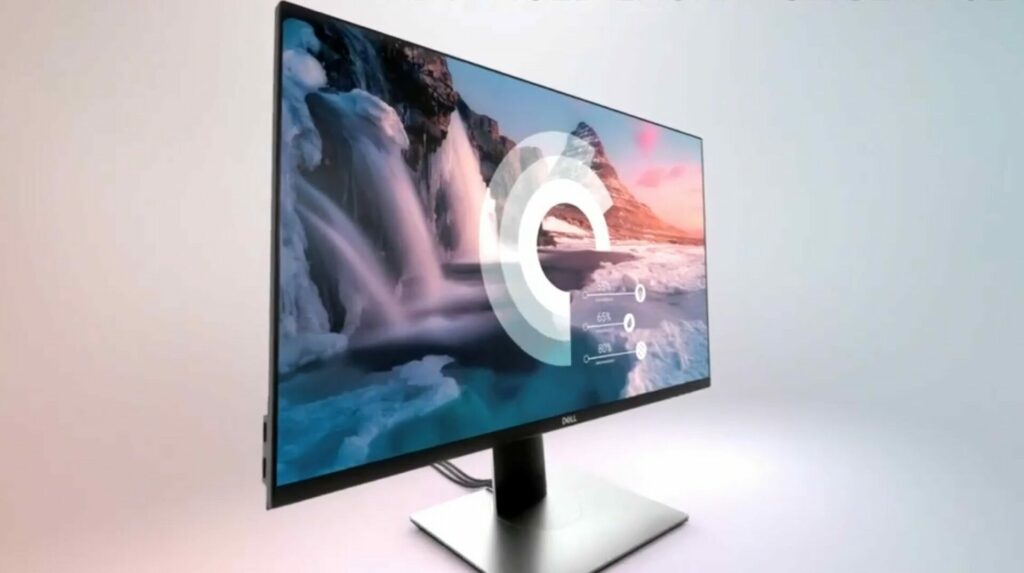
Within a good budget, you will get excellent performance with this monitor. Performance longevity is also noteworthy. The color and size are mind-blowing. If you are not going to use it for daily scaling work and other highly sophisticated work, go for it.
Read the full write-up
Key Features:
- Panel Type In-Plane Switching (IPS) Panel.
- Resolution: 1920 x 1080 Full HD
- Static Contrast Ratio: 1000:1
- Brightness: 250 cd/m²
- Viewing Angles:178°/178°
- Color Support: 16.7 Million.
This Dell 2219H outperforms expectations on every level. In a 1080p system, it provides clear text, good brightness, and reasonably good color rendition. Microsoft Office, particularly Word and Excel, YouTube, and surfing
Ergonomic Design
First of all, it is large enough screen for office. At the same time, does not take a lot of space due to its bezel being non-existent on the top and sides and minimal (.5 inch) on the bottom.
The monitor takes up very little desk space for its display area, both visually and physically. It is extremely easy to set up as well!
Picture Quality
While the balance with no adjustments is perfect. It is unquestionably bright. It has no banding, hotspots, IPS “glow,” or stuck pixels.
It also comes with settings where you can go to comfort mode which is much easier on the eyes.
Moreover, its wide viewing angle that is enabled by In-Plane Switching (IPS) technology allows you to see vibrant colors no matter where you sit.
The Good
Good quality picture and ergonomic. The base is strong and extremely adjustable (height, swivel, pivot & tilt). Furthermore, they provide a plethora of ports (HDMI, Display Port, and d-sub VGA) as well as cords.
The Bad
The only bad aspect seems to be its low resolution. It’s ‘1080p’ as some say. Moreover, it may not be suited to gamer folks. Additionally, it does not offer good scaling. 100 pixels per inch.
Best Budget – Acer SB243Y G0bi 23.8-inch

A good choice for a first proper home office monitor or a cheap second screen for email, documents and video calls. If you need a height-adjustable stand, the Dell P2219H above is the better fit.
- Screen
- 23.8-inch IPS
- Resolution
- 1920 x 1080 Full HD
- Refresh rate
- Up to 120Hz with Adaptive-Sync (FreeSync Compatible)
- Response time
- 1ms (VRB)
- Brightness
- 250 nits
- Pixel pitch
- 0.275mm
Why we like it
- Very low price
- IPS panel with consistent colours from an angle
- Up to 120Hz refresh rate with Adaptive-Sync
- Thin bezels for dual-monitor setups
Keep in mind
- 250 nits is only average brightness
- Full HD is less sharp than QHD for heavy multitasking
- The Amazon listing does not detail the ports or stand adjustments
High End – ASUS ProArt PA278QV 27-inch QHD

Pick the PA278QV if colour accuracy matters to your work, such as photo editing, design or video. For email, spreadsheets and calls, one of the cheaper 1080p monitors here will do the job.
- Screen
- 27-inch IPS
- Resolution
- 2560 x 1440 (WQHD)
- Colour gamut
- 100% sRGB and 100% Rec. 709
- Colour accuracy
- Calman Verified, Delta E < 2
- Inputs
- DisplayPort, HDMI, DVI-D, Mini DP, plus a USB hub
- Stand
- tilt, swivel, pivot and height adjustment
Why we like it
- Factory colour verification (Delta E < 2)
- 100% sRGB and Rec. 709 coverage
- Fully adjustable stand with pivot
- Four video inputs plus a USB hub
Keep in mind
- No USB-C input listed, so some laptops need an adapter
- Costs much more than the other budget picks here
- Refresh rate and response time are not stated on the listing
1080p Basic – ASUS VA24DQ 24-inch
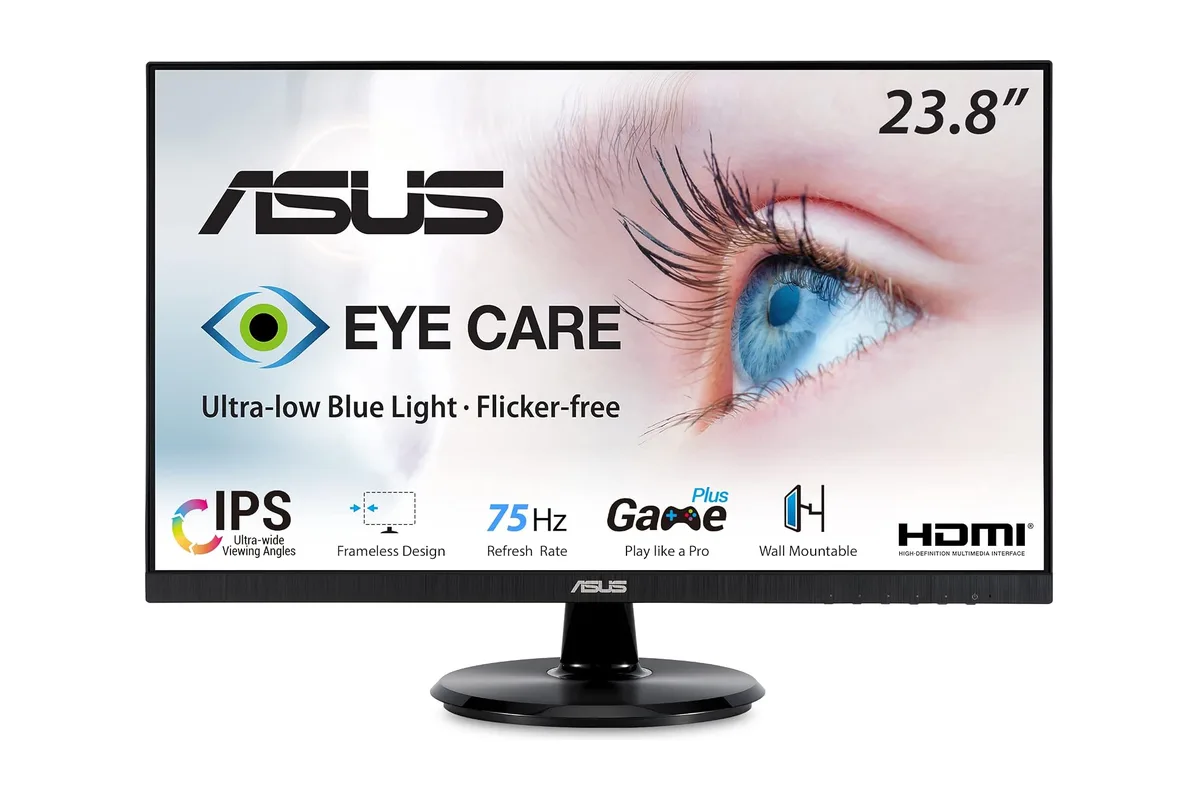
A simple, dependable 24-inch screen for everyday office work, especially if you need VGA for an older computer. Pair it with a monitor arm if you want better ergonomics. How to Choose Budget Monitors for Your Home (The Buying Guide) The basics are simple – A 27-inch screen with 4K resolution is great for a home office monitor. It has an IPS screen that can display 99 percent of the sRGB color spectrum and has a brightness of at least 250 nits. Around the rear, there's a USB-C port that can charge a laptop, as well as HDMI and DisplayPort ports, and an ergonomic stand that adjusts for height and attaches to a VESA mount. If you have a small, thin desk, 24-inch monitors are better. 4K (3,840 x 2,160) resolution looks amazing and is widely available on 27-inch and 32-inch panels. The 1440p resolution (2,560 x 1,440) can help you save money. On a 32-inch screen, it's a little underwhelming. In a 27-inch or 32-inch display, avoid 1080p (1,920 x 1,080). HDMI and DisplayPort are found on the majority of monitors. Because certification for the standard is lax, HDMI 2.1 support can vary a lot between monitors. For recent laptops that embrace the standard, USB-C and Thunderbolt are fantastic since they enable for a single-cable solution. It is, however, costly. Moreover, any monitor worth your time will have a stand that at the very least adjusts for height, typically between 100 and 150 millimeters. It's preferable to have at least 95% of the sRGB color spectrum. Other gamuts, such as DCI-P3, are the most often touted, while Rec.709 and Adobe RGB are also available. These ranges are vital if your job necessitates them, as you may already be aware. Frequently Asked Questions (FAQs) Which size monitor is best for office work? For home office, you may choose either 27 or 32 inches monitor. Can you use a TV as a monitor? Yes, via wireless casting or HDMI cable, you can use a TV as a monitor. Do larger monitors increase productivity? Yes, it does. Tasks are completed 52% faster in bigger monitors (University of Utah study report). Is it better to have two monitors or one big one? Dual monitors are better. What happens if your refresh rate is higher than FPS? When the refresh rate is higher than FPS the monitor will be unable to display all of the frames that your computer generates. Conclusion Before making a decision, you must balance the pros and cons of various specifications, technologies, and pricing points. My suggestion is to buy a monitor with the expectation of keeping it for a long period. Cheap monitors are tempting, but they are limited in terms of input possibilities and image quality. Consider the amount of money you're getting for your dollar when you're spending it.
- Screen
- 24-inch IPS, 178° viewing angles
- Resolution
- 1920 x 1080 Full HD
- Refresh rate
- Up to 75Hz with Adaptive-Sync/FreeSync
- Inputs
- HDMI, DisplayPort, VGA
- Extras
- built-in speaker, VESA wall mount
- Tilt
- +23° to -5°
Why we like it
- IPS panel with wide viewing angles
- HDMI, DisplayPort and VGA inputs
- Built-in speaker
- Flicker-free and Low Blue Light modes
- 3-year warranty
Keep in mind
- Stand is tilt-only, with no height adjustment
- 75Hz is only a small step above 60Hz
- Full HD is not ideal for detailed design work